
 PrintCHECK
PrintCHECK · Check designer
Design a QuickBooks Online check layout that fits your stock the first time
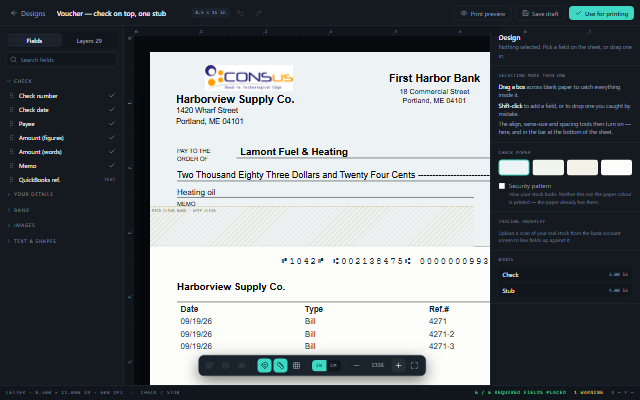
Instead of shifting margins a millimetre at a time and printing test pages, lay your fields out directly over a scan of the checks you actually buy. What you see in the designer is what comes out of the printer.
Real stock, not guesswork
Your check under the canvas
Upload a scan or photo of a blank check from the bank account screen. It appears underneath the design as an underlay, at true size, so you position the payee line, amount box and date exactly where the paper wants them.
The underlay never prints. Neither do the background colour and security pattern you see on screen — your paper already has those.
Building blocks
Every element a check needs
Data fields
Check number, date, payee, amount in figures and in words, memo, payee and payer addresses, QuickBooks reference.
MICR line
Routing, account and check number in E-13B, with a check that it sits in the clear band.
Bank details
Bank name, fractional routing code and your company logo, set once per bank account.
Signatures
Up to three signature images, with an optional second signature above an amount you choose.
Text, lines and boxes
Static text, rules, boxes and images for anything your stock or your auditor needs.
Stub tables
Voucher stubs listing the bills a payment covers — date, reference and amount.
Workflow
Draft, check, publish
- 01
Start from a template
Check on top, middle or bottom, with one or two stubs.
- 02
Place and align
Drag, resize, align and distribute fields the way any drawing tool works.
- 03
Preview with real data
A watermarked preview fills the layout with an actual check from QuickBooks.
- 04
Print a calibration sheet
Confirm alignment on plain paper before you touch check stock.
- 05
Mark it ready
The designer warns if a required field such as the payee is missing, then the layout is used for printing.
Details that matter
Small things that stop reprints
Tamper protection
- Asterisk fill on the numeric amount
- Asterisk fill on the written amount
- Spaced date format for pre-printed date boxes
Layout management
- Several named layouts per bank account
- Drafts kept separate from the live layout
- Import and export layouts as files
FAQ
Frequently asked questions
Can I use a different layout for each bank account?
Yes. Layouts belong to a bank account, and each account can keep several named layouts — for example a voucher layout for vendors and a plain one for payroll.
My fields are slightly off on paper. What do I do?
Print the calibration sheet on plain paper, hold it against a check and adjust. Because the design sits over a scan of your stock, corrections are usually a single small move.
Does the designer print the check background?
No. The colour, pattern and underlay are only there on screen so the layout looks right. You print onto stock that already carries them.
More about PrintCHECK
See PrintCHECK with your own data
Imports every check and bill payment from QuickBooks Online, numbers them per bank account, reviews each batch for duplicates and unusual amounts, and prints it — MICR line included — on blank or pre-printed stock.